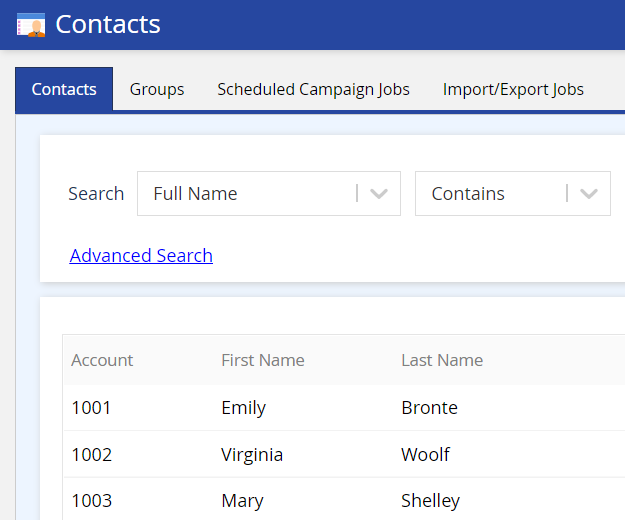
You can create multiple contact records at once on the LiveVox Portal (LVP) using the Import feature of Contact Manager. This feature enables you to import contact records from a file on your computer into Contact Manager on the LiveVox Portal.
This article describes how to import contacts from a comma-separated values (CSV) file into Contact Manager.
Before You Begin
Procedure
To import contacts from your file into Contact Manager:
- On LVP, on the Configure tab, click Contacts > Contacts.
The Contacts window (Contact Manager) appears. - Click Import.
The Import Contact window appears. - Specify values in the following fields:
- File: Select your file by clicking Choose File.
-
File Format: Select the input filter you created.
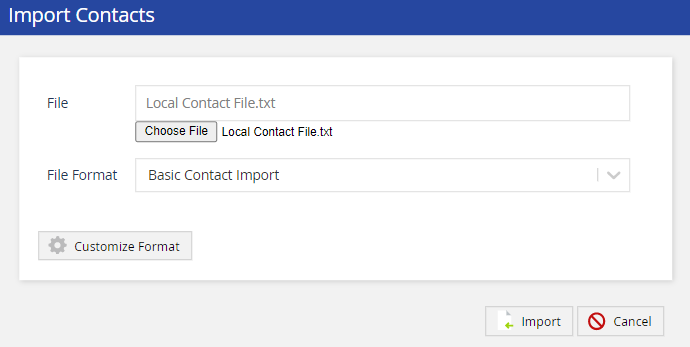
- Click Import.
A message stating that the import task is running appears. - After the message disappears, refresh the window.
All the contacts in your file are imported to LVP, and they appear on the Contacts tab of Contact Manager.